


DVD to iPod free and made easy [ 29 November 2007, 21:32:00 ]
This is a simple guide which gives you instructions on how to put a DVD onto you iPod in under 2 hours. Make sure you've got all the ingredients! And please read the warning.
- Stage 1: Decrypt and copy your DVD to your hard drive
- Stage 2: Compress your video file and convert to mp4
- Stage 3: Get the mp4 onto your iPod
Ingredients
1 iPod Classic
1 iPod USB cable
1 Region 1 (UK) DVD disk
1 Windows XP PC connected to the Internet
1 version of iTunes installed and configured to work with your iPod
Warning
You should only follow this guide with DVDs you own an original retail copy of. This is for making a backup of the DVD you own for the sole purpose of you using the backup.
Steps
Stage 1: Decrypt and copy your DVD to your hard drive
Firstly you must decrypt and copy the DVD onto your hard drive.
- Download DVD decrypter from here: http://www.mrbass.org/dvdrip/SetupDVDDecrypter_3.5.4.0.exe.
- Virus scan your download and make sure it is ok
- Run DVD decrypter
- Insert the DVD youíd like to copy
- Click on the mode menu and choose IFO I mode:
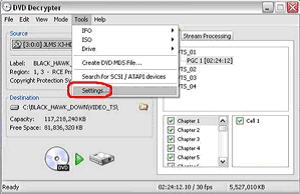
- Go to the tools menu and click settings. Go to the IFO Mode tab. Click on he File Splitting drop down menu and select none.
- Create a folder somewhere on your hard drive for the video file to go.
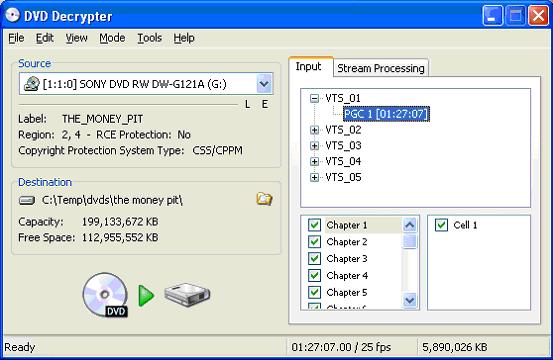
- Choose the folder created in step 6 as the destination for your video file
- Click on Stream Processing tab
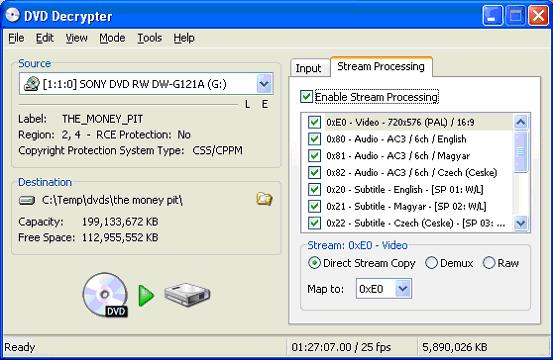
- Click on Enable Stream processing checkbox
- In the list of streams deselect all the subtitle streams, deselect all the Audio streams apart from the highest quality English audio (this will be the main audio for the film, e.g. Audio ñ AC3 / 6ch / English). Make sure the Video stream is selected.
- Click the DVD to hard drive button.
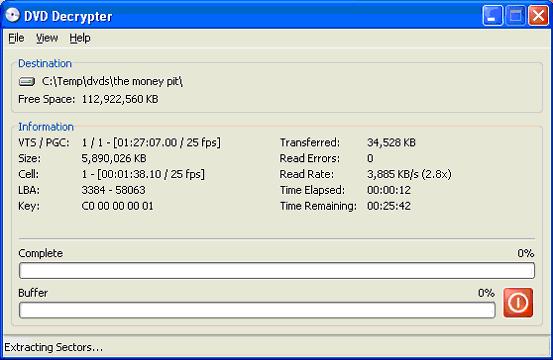
- Wait for the copying to start, and you will get an estimated time remaining.
- Go and make a coffee and watch some telly and come back in 20 minutes. You want to leave the computer alone as this process is processor intensive.
- Once complete the above dialog will appear. Click OK. (You may close the DVD decrypter program at this point).
- You will get 3 files, it is the VTS_01_1.VOB that we will now compress and convert to mp4 in stage 2.





Stage 2: Compress your video file and convert to mp4
Your video file should have been successfully decrypted and copied to your hard drive; next step is to compress the file in order to go on your iPod
- Download Videora iPod Converter from here: http://www.videora.com/en-us/Converter/iPod/
- Virus check your file to make sure it is OK
- Install the software, not it may prompt you to install the .net runtime, do this, and then let it install
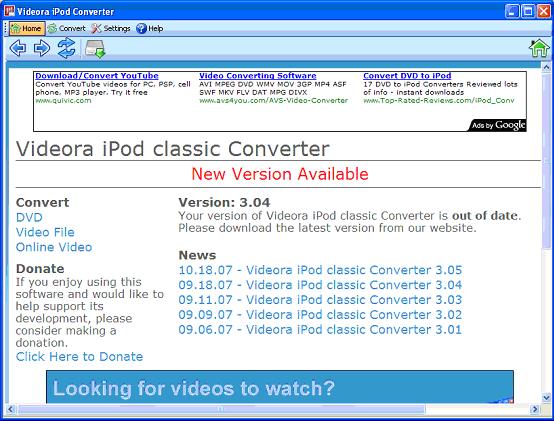
- Run Videora iPod Converter you will be prompted to choose your iPod, I had an iPod classic so chose that one
- You will then get the follow screen:
- Click on the Convert button, click on the video file tab and then click on "Normal Mode".
- Select the VTS_01_1.VOB file and step 2 will appear
- Select the output directory as your "My Videos" directory
- Click the next button
- Give the video a title and click the next button
- Play around with the video settings see below. It will normally give you an estimated File Size and you can play around with the settings until you get the file as small as you want it 300MB - 400MB is a good size. Also note the conversion speed, it is preferable to keep this as low as possible.
- Click on next
- Click on the start converting button in the bottom right of the dialog.
- It will then say conversion in progress, then click on view conversion. You will get the screen below:
- This will give you and estimated time remaining. It should take between 30 minutes to 1 hour. Again you should leave your PC whilst this is processing as it is processor intensive.
- Once complete it will say Conversion Complete. Navigate to your mp4, double click it and check it works correctly, then go to stage 3. (You may close Videora iPod Converter at this point).


Stage 3: Get the mp4 onto your iPod
- Make sure the mp4 file is in youíre ìMy Videosî directory under ìMy Documentsî
- Open iTunes (This guide assumes iTunes is already setup with your iPod)
- Plug the iPod into your computer using the USB cable.
- iTunes should automatically detect your iPod
- Click on Devices and click on your iPod.
- Click on the Movies tab.
- Check the Sync Movies checkbox and choose the Selected Movies radio button
- From the list of videos check the box against the mp4 film you want to put on your iPod.
- Click the "Apply" button. Wait whilst the iPod synchronises. ITunes should say that the iPod is synching and that you should not disconnect. You will also get a message saying it is copying the video file to the iPod.
- Once complete the message "iPod sync is complete OK to disconnect" will appear.
- Disconnect you iPod and navigate to videos, movies and then select and play the movie.

Done
Back to the top